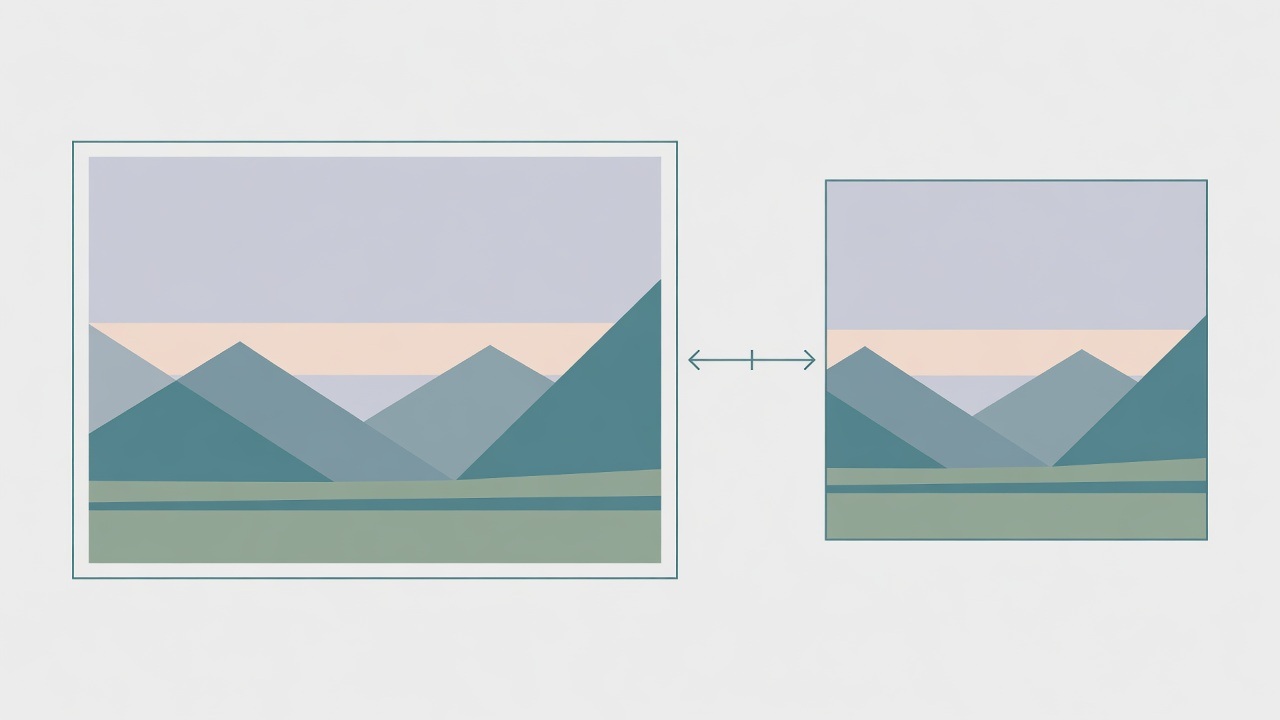
Resizing an image without stretching its proportions
Choose the input and output
The browser tool accepts PNG, JPEG, and WebP images. The input file can be up to 10 MiB and contain up to 20 million input pixels. Processing happens locally in the browser, so there is no account, upload, or storage step. When you set a new width or height, you can choose a value from 1 to 4096 pixels. The aspect ratio lock is enabled initially, which helps keep the original proportions. There are no vector, animation, or batch tools, so work with one raster image at a time.
A worked example
Imagine an image that is 100 pixels wide and 60 pixels high. If you change the width from 100 to 50 and the aspect ratio lock is active, the height changes automatically from 60 to 30. The result keeps the same 5:3 shape instead of becoming distorted. This happens because the tool adjusts the other dimension in proportion to the value you entered. You only need to set one side when the ratio lock is enabled; the second side is calculated for you.
A useful way to think about scale is pixel count. Doubling both dimensions quadruples the pixel count. For example, changing a 100 by 60 image to 200 by 120 increases the total from 6,000 pixels to 24,000 pixels. However, increasing pixels does not restore missing detail. An image that was already small or blurry may simply become a larger blurry image after resizing.
Check the downloaded file
Use the preview and check the actual download dimensions before relying on the file. The displayed output can become stale after you change controls, so confirm the final values after your last adjustment. Checking the downloaded file also helps you catch an accidental stretch. Dimensions alone do not predict the file size. Check the size of the converted output: it also depends on the selected format, quality and image content.
Limits and common mistakes
Stay within the supported input formats and size limits. PNG, JPEG, and WebP are accepted, but a file over 10 MiB or over 20 million input pixels will not work. A common mistake is changing one dimension while expecting the other to stay fixed and then discovering that the image was stretched or squashed. With the aspect ratio lock enabled, changing width to 50 in the example above gives a height of 30, not 60. Another mistake is ignoring stale output after changing a control. Always use the final preview or downloaded image as the source of truth instead of relying on an earlier result.